🖨️ Print Widget
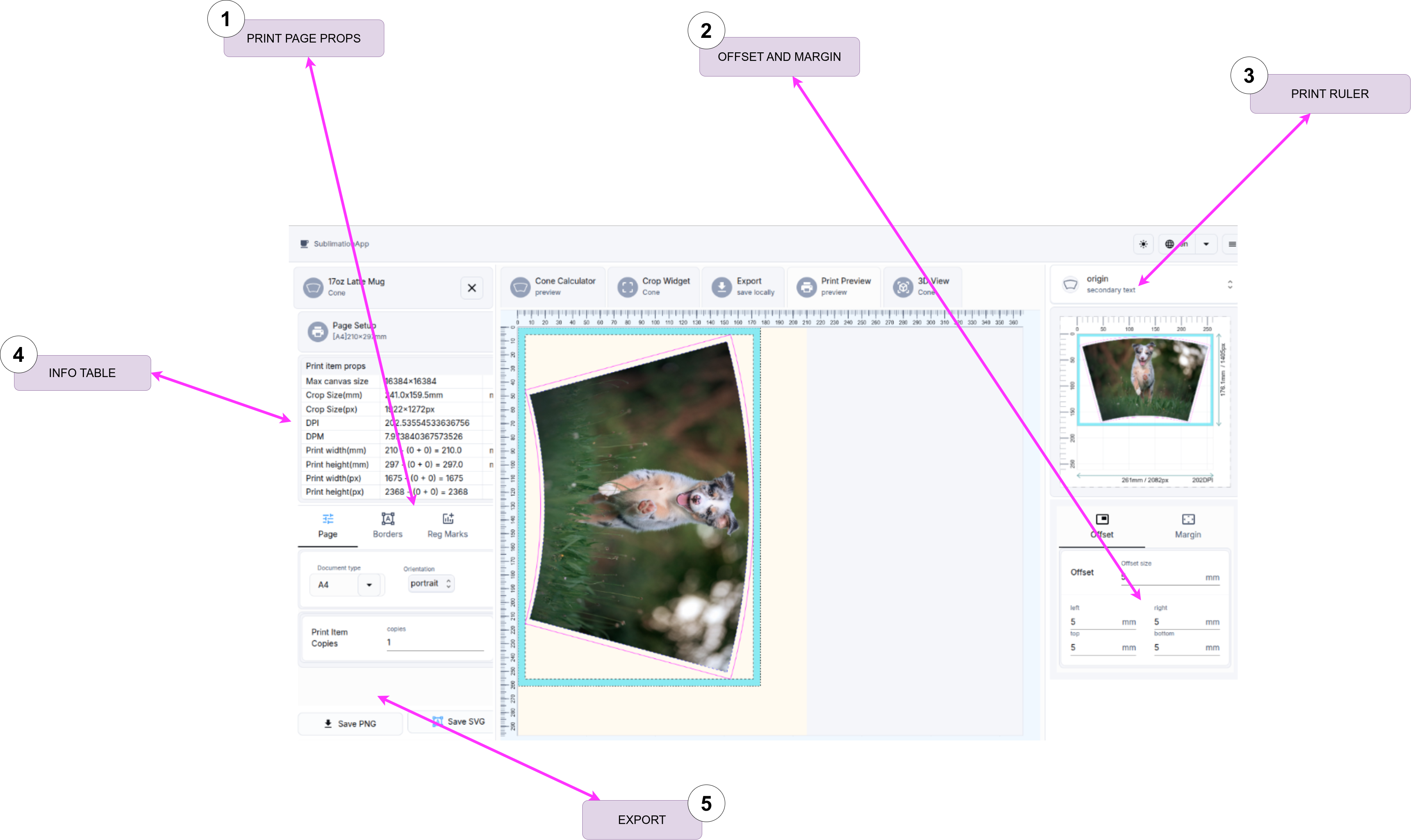
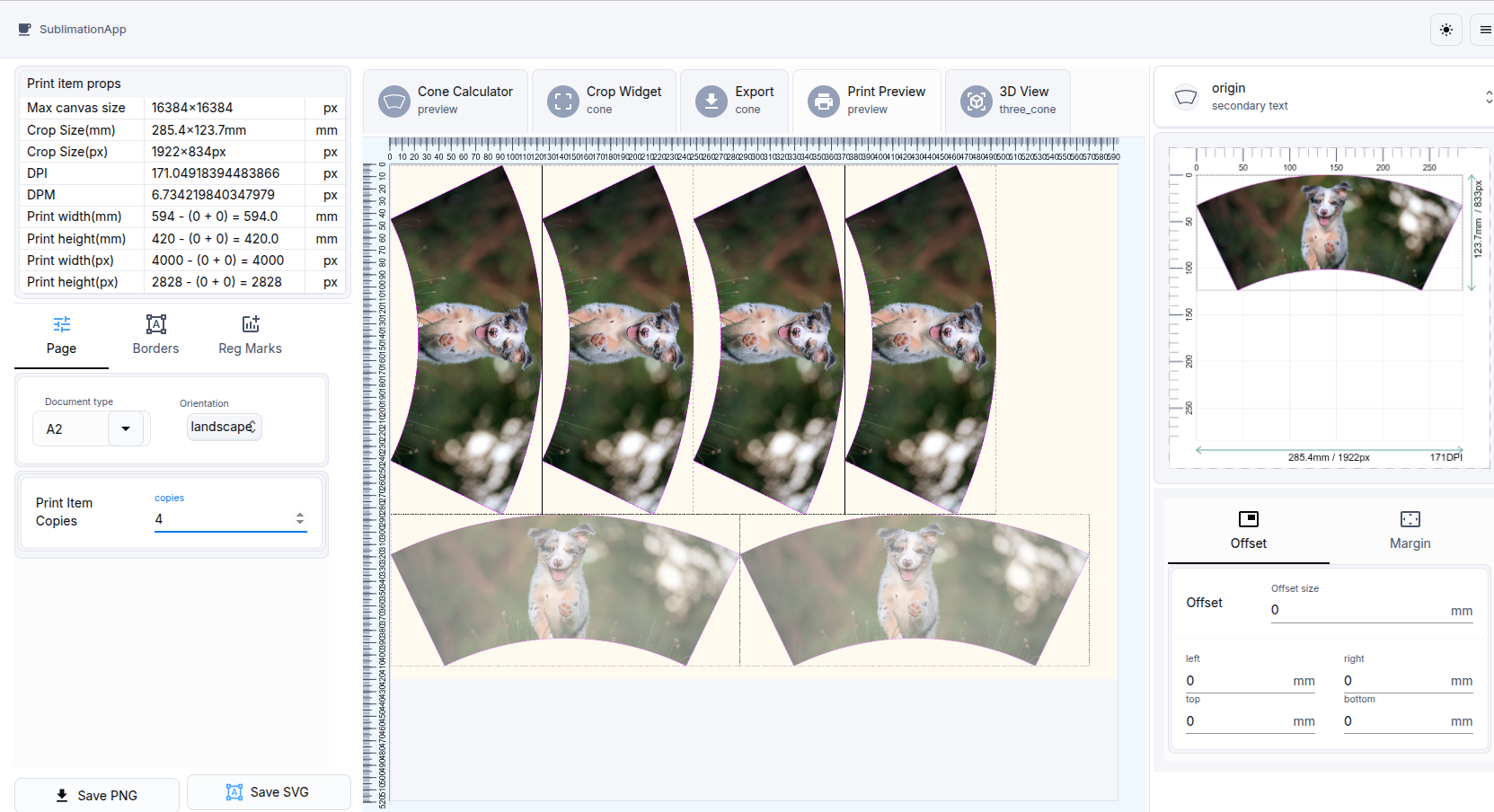
The Print Widget takes your converted "open" frustum layout and automatically arranges multiple copies onto a single printable page.
It uses a smart bin-packing algorithm that tests different rotations, transpositions, and placements to find the optimal layout — maximizing the number of items that fit while respecting your margins and page settings.
The widget outputs a single page (which you can print repeatedly to achieve the desired total quantity).
What the Print Widget Does
- Uses the same cropped frustum image prepared in the Crop Widget.
- Applies per-item offset and margin (identical to the Export Widget).
- Packs as many copies as possible onto one page (limited by Max copies).
- Adds optional page borders (if printing device requires).
- Exports the entire page as PNG (for printing) or SVG (for cutting devices).
The algorithm automatically tries multiple orientations to provide the densest possible packing.
What is Not Supported
- Custom print page sizes. Please refer to the Supported Paper Sizes for the full list.
- Page pixel size cannot exceed the Max pixel size — typically
16384x16384pixels.
1. Page Options
These settings control the overall sheet:
| Setting | Description | Notes |
|---|---|---|
| Page size | A4, Letter, A3, etc. | Currently does not support custom dimensions. See Supported Paper Sizes. |
| Orientation | Portrait or Landscape. | |
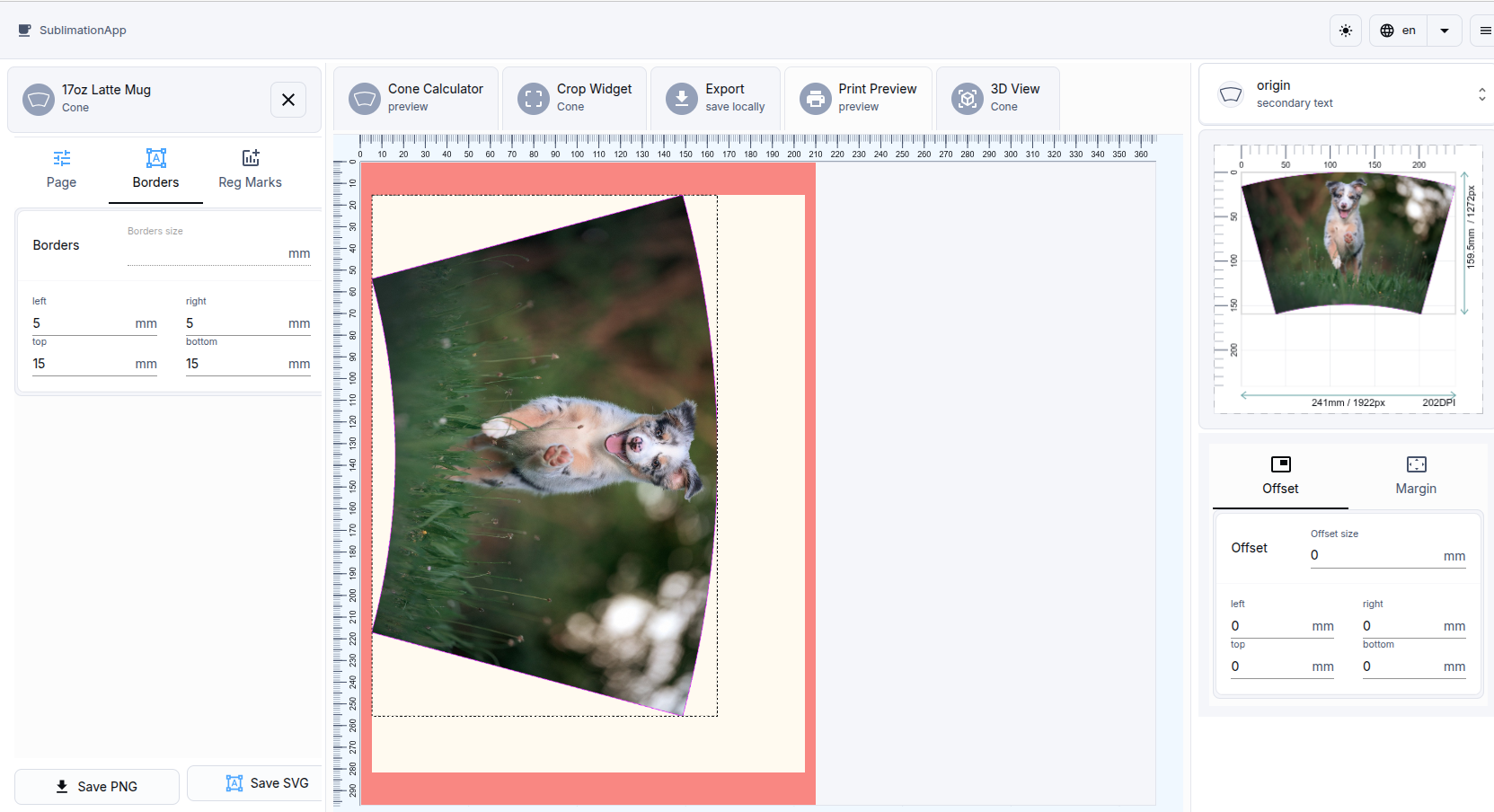
| Print page borders | Toggle and set border thickness around the entire page. | Useful if your printer or software requires margins. The resulting image will be reduced by this value. |
| Max copies | Maximum number of items to be placed on a single page. |
Page Borders
Add these if your printer or software requires them. The resulting image area will be reduced by this value.
Object Copies
This defines the maximum number of items the packer is allowed to place. Initially, the maximum available item count is pre-calculated. You can reduce this number if you need fewer prints.
2. Offset and Margin
The widget provides two distinct controls (tabs on the right panel):
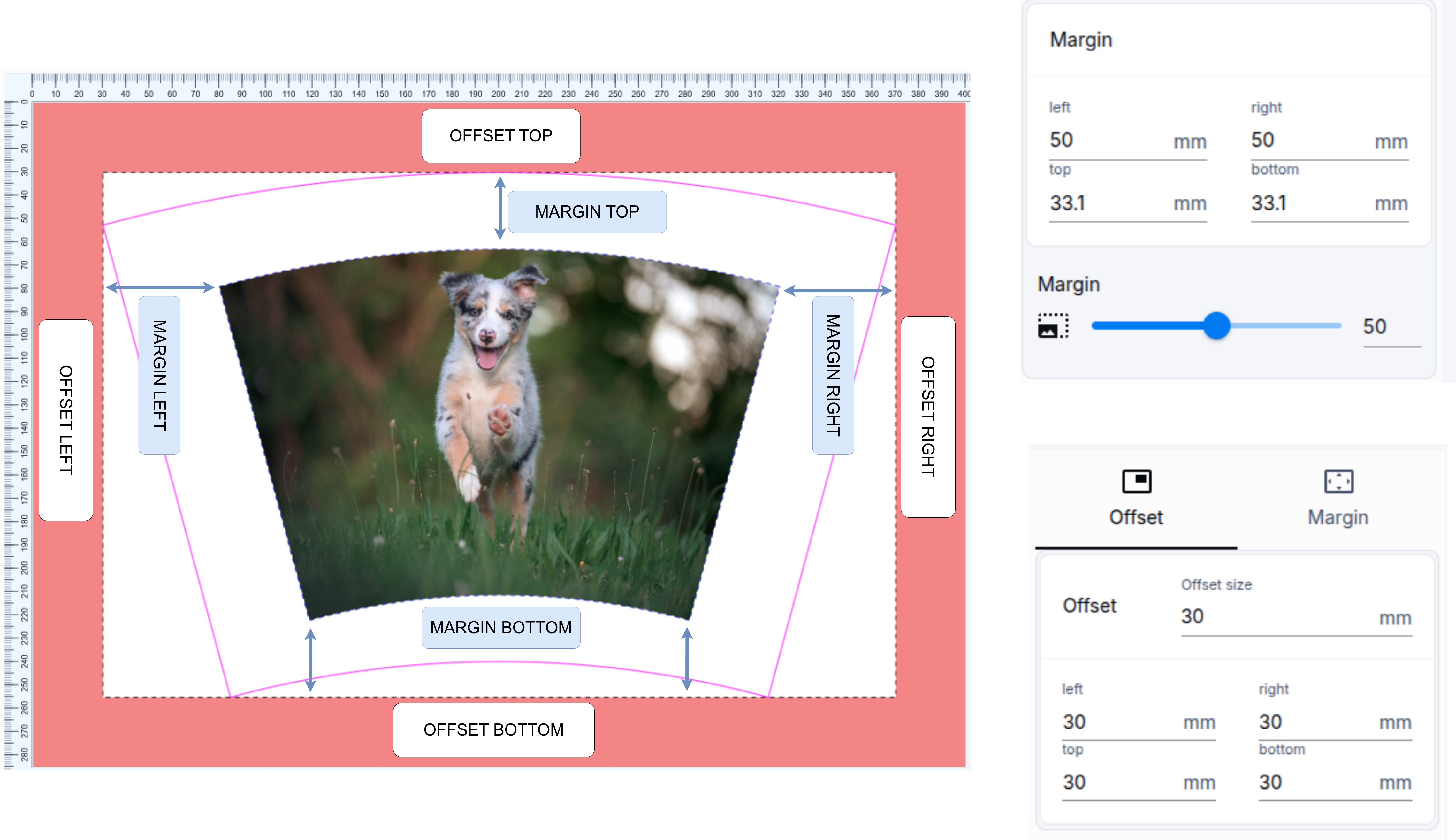
Offset (Outside Padding)
- Adds space around the bounding box of the entire frustum.
- Works like an extra canvas/padding applied separately to each side.
- Has a Rectangle shape.
- Supports per-side values (left, right, top, bottom) or a uniform value.
Margin (Bleed)
- Expands following the exact shape of the frustum (including the curved top and bottom edges).
- Creates a bleed area for printing to account for trimming and wrapping misalignment.
- Uses a uniform value only (per-side values are not supported).
Note that the top and bottom margins are not equal to the left and right pair. When you set a value using the slider, it represents the left or right margin, while the top and bottom are calculated based on the shape's geometry.
You can use both Offset and Margin simultaneously. The final export size includes the sum of both.
3. Print Ruler
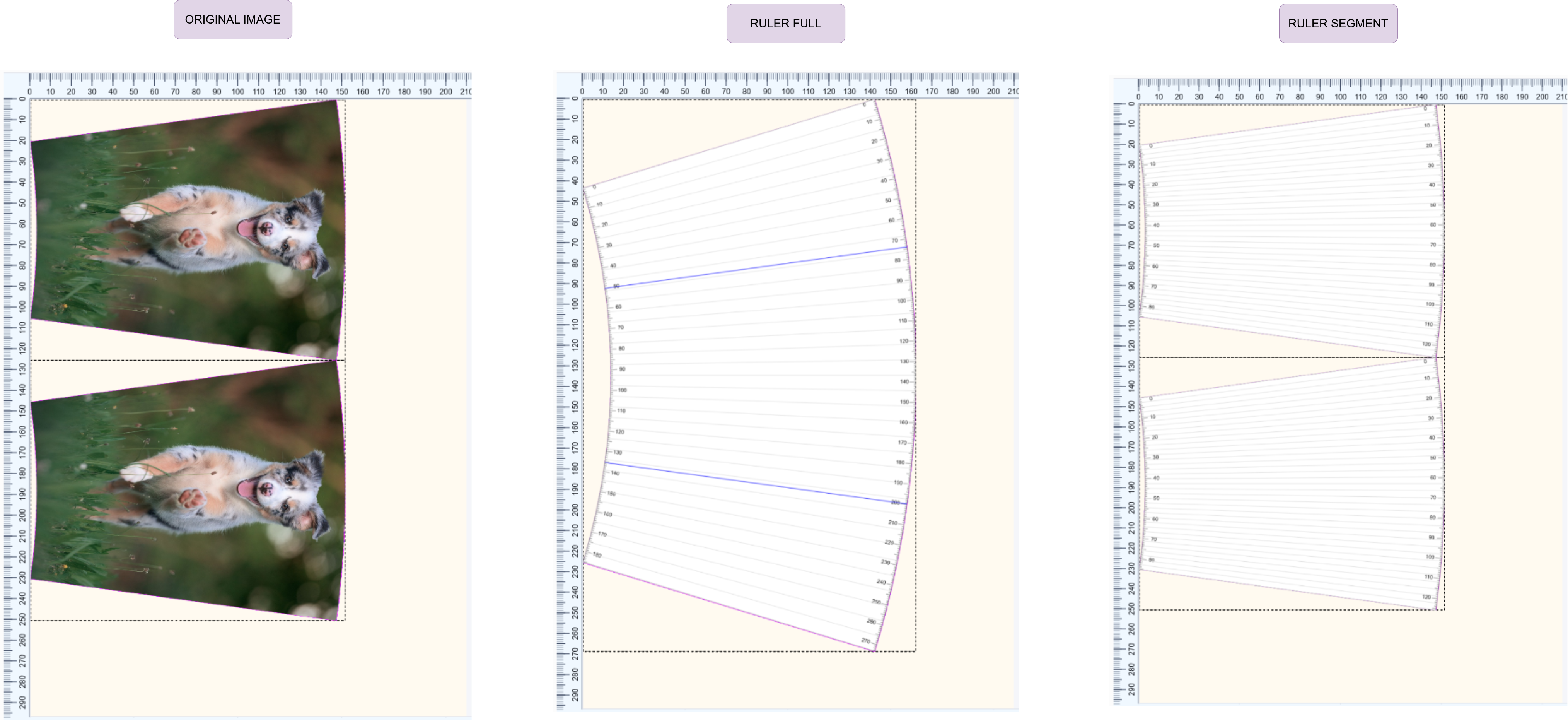
You can place three types of objects on a print page:
- Original image: The converted image (placed by default).
- Ruler full: The ruler shape, including
segment cuts. - Ruler segment: Only the segment ruler.
4. Info Table
| Parameter | Purpose | Units |
|---|---|---|
| Crop Object size | Bounding box of the converted object. | inch/mm |
| Crop Object size(px) | Bounding box of the converted object in pixels. | pixels |
| DPI | Dots per inch. | pixels |
| DPM | Dots per millimeter. | pixels |
| Page Print size | Total print size (including offset/margin). | inch/mm |
| Page Print size(px) | Total print size (including offset/margin) in pixels. | pixels |
Print Item Options (Same as Export)
These settings apply to each individual frustum on the page:
- Offset: Outside padding around the bounding box.
- Margin: Shape-following bleed (follows the curved top/bottom edges).
You can set different values per side or use the uniform slider. The final size of each placed item = original crop size + offset + margin.
7. Export Formats
| Format | Purpose | Best For |
|---|---|---|
| PNG | High-resolution raster page. | Direct sublimation printing on a flatbed or roll printer. |
| SVG | Scalable vector page. | Cutting machines (Silhouette, Cricut, etc.). |