📖 How to Use
Discover how to use the Cones Calculator in less than 5 minutes.
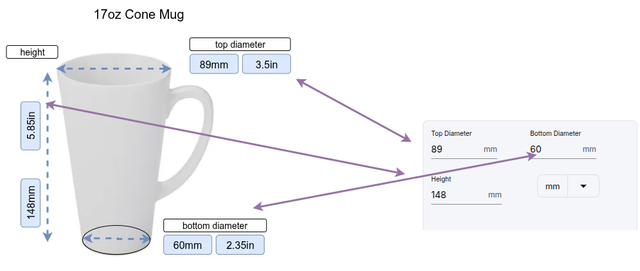
1. Add Cone Parameters
Add the Top Diameter, Bottom Diameter, and Height of your conical product to the form. Then switch to the Crop Widget tab.
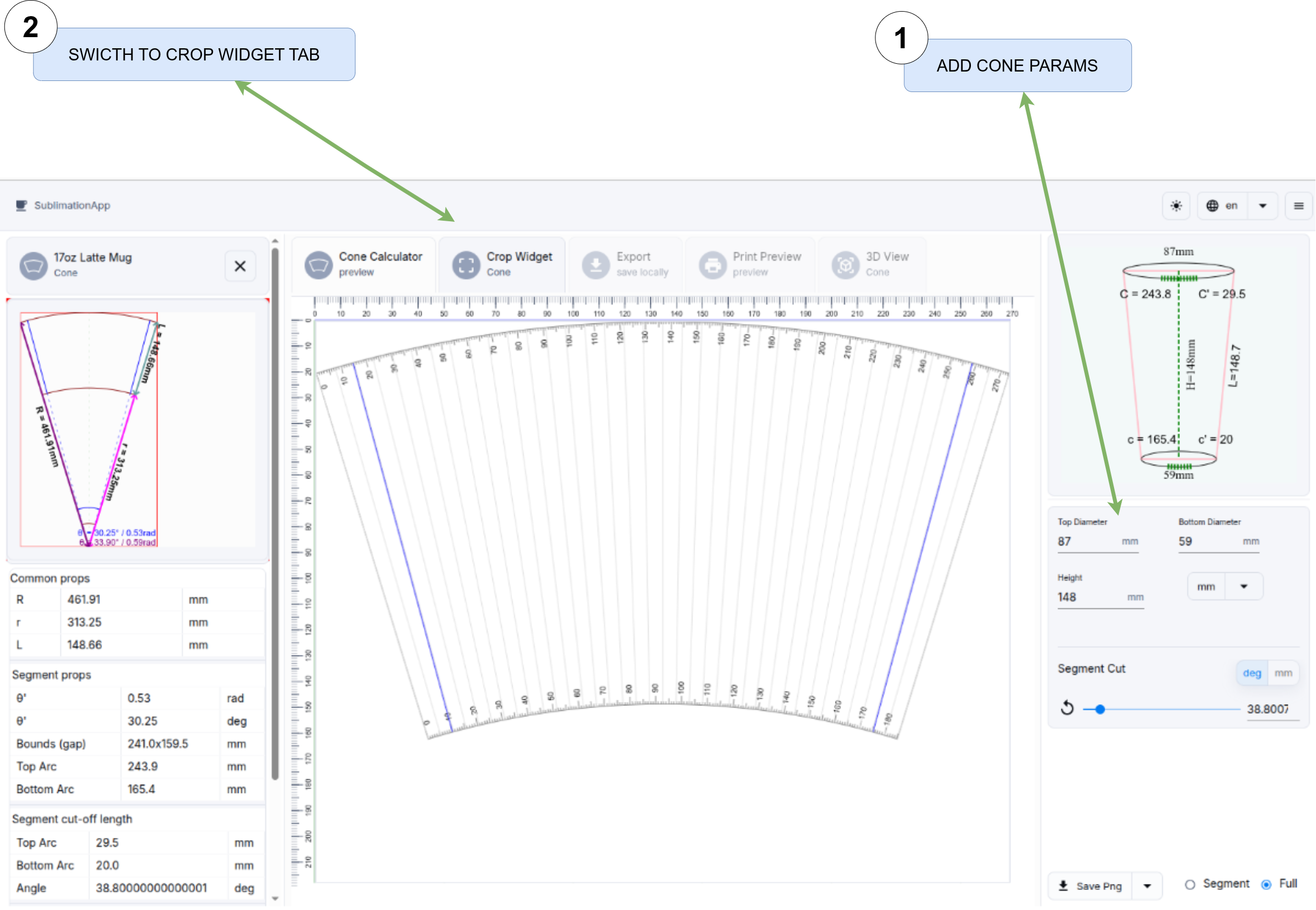
Note that the Top Diameter should be the larger of the two diameters.
Check out the Cone Calculator for more details.
2. Crop and Convert
In this widget, you'll add an image and convert it to a cone shape.
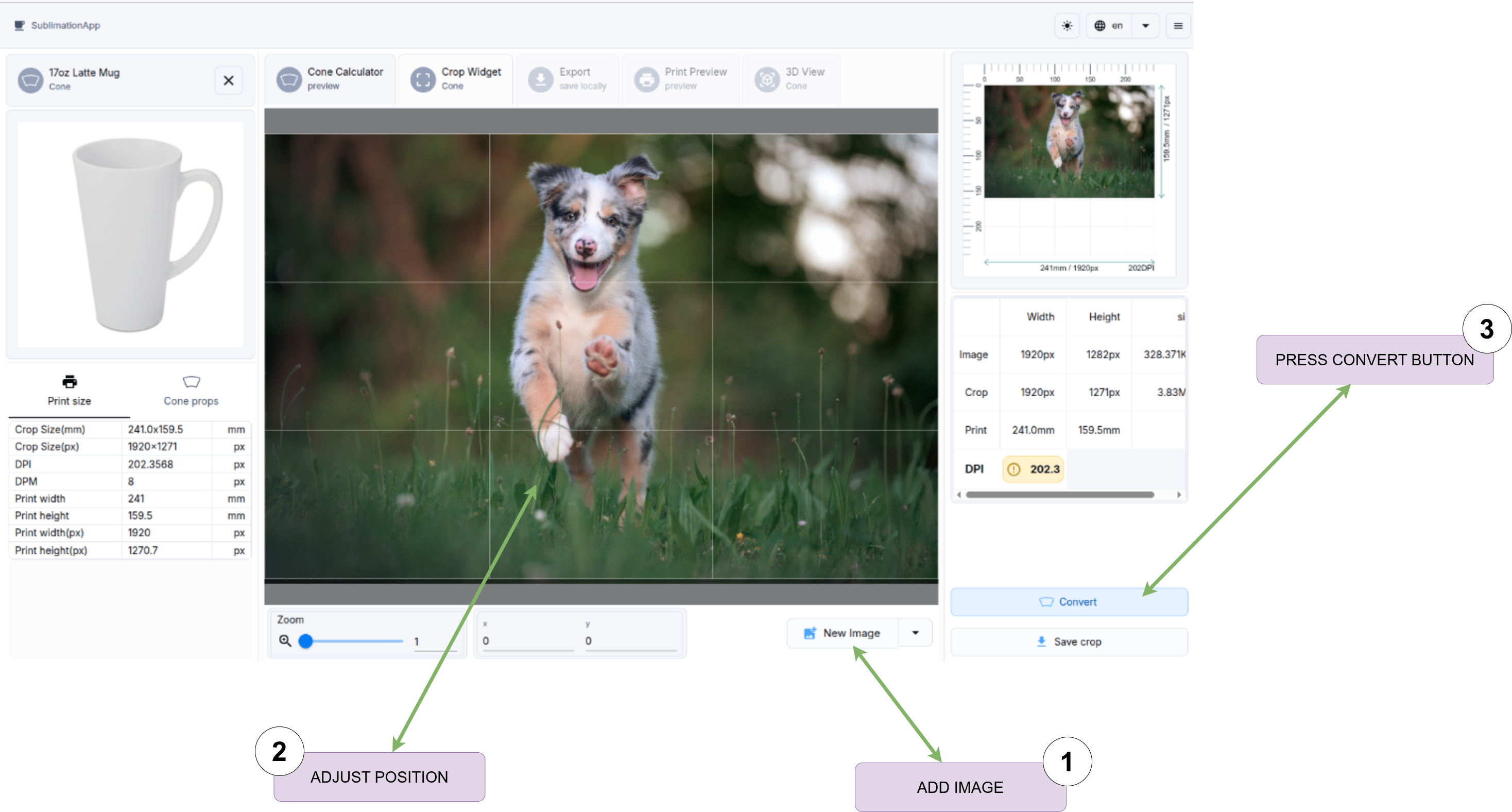
Add Image
Click the "New Image" button to import your design.
Adjust Position
Use your mouse or the bottom controls to adjust the image position.
Click Convert
Click the Convert button to start the image transformation process.
Check out the Crop Widget for more details.
3. Export Converted Image
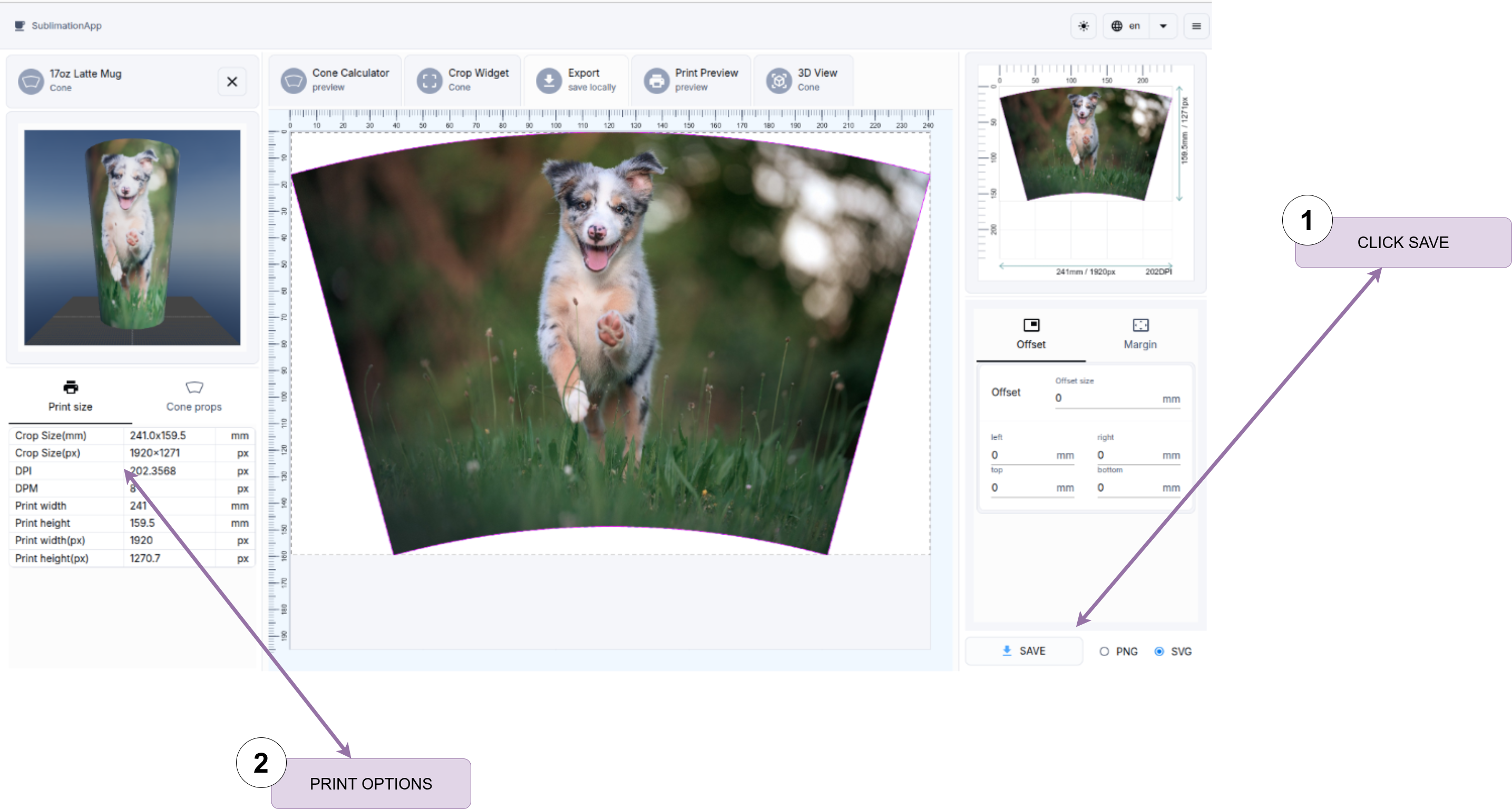
Available Export Formats
| Format | Purpose |
|---|---|
| PNG | High-resolution image for printing. |
| SVG | Vector format for printing and cutting devices. |
Use Print Options
All necessary parameters for printing, such as print size and DPI, are available in the left sidebar table.
| Parameter | Purpose | Units |
|---|---|---|
| Crop size | Dimensions of the cropped rectangle. | inch/mm |
| Crop size(px) | Dimensions of the cropped rectangle in pixels. | pixels |
| DPI | Dots per inch. | pixels |
| DPM | Dots per millimeter. | pixels |
| Print size | Total print size (including offset/margin defined in the export widget). | inch/mm |
| Print size(px) | Total print size (including offset/margin defined in the export widget) in pixels. | pixels |
Check out the Export Widget for more details.
4. [OPTIONAL] Setup Print Page
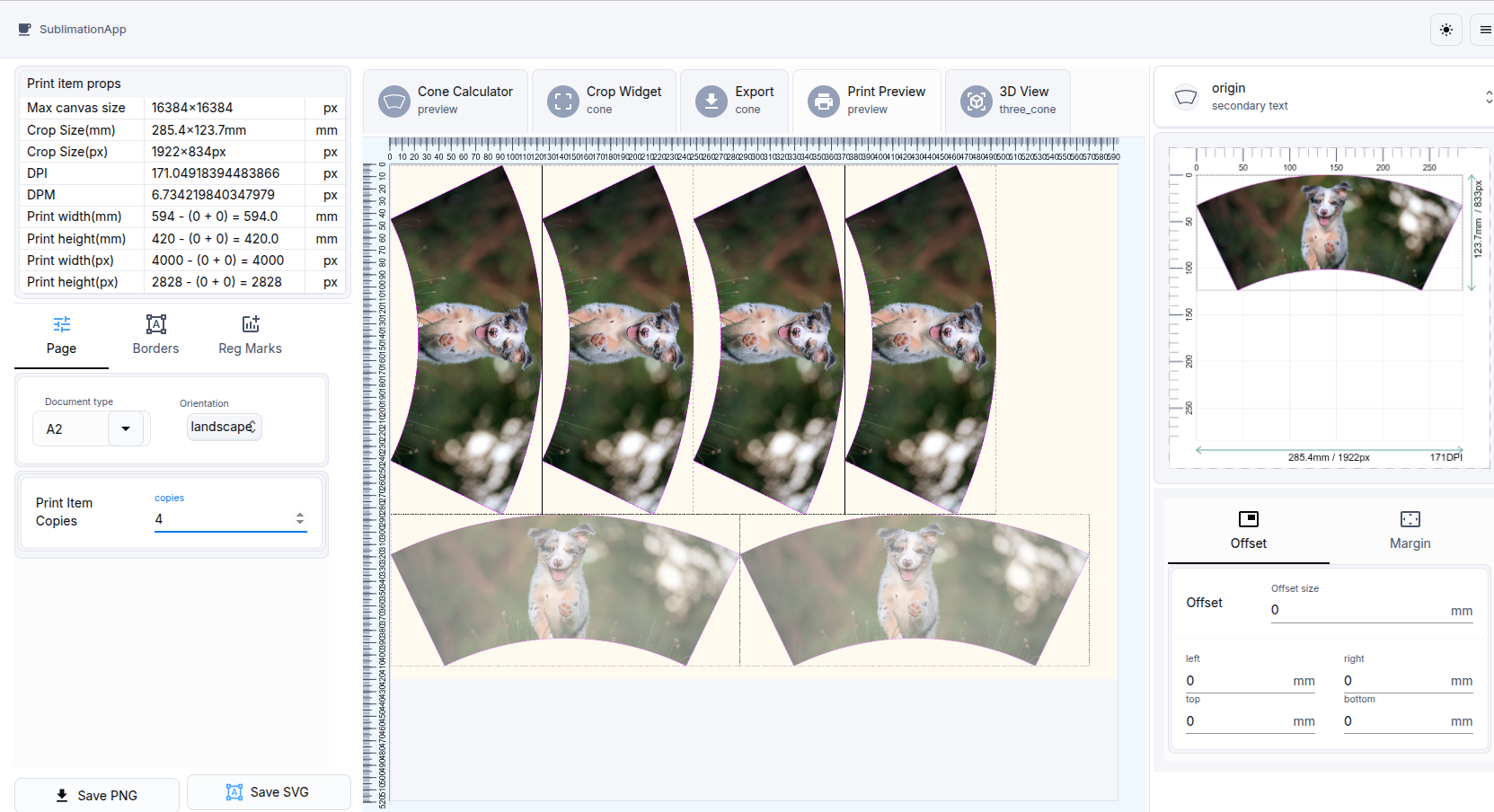
Check out the Print Widget for more details.
5. [OPTIONAL] 3D Preview
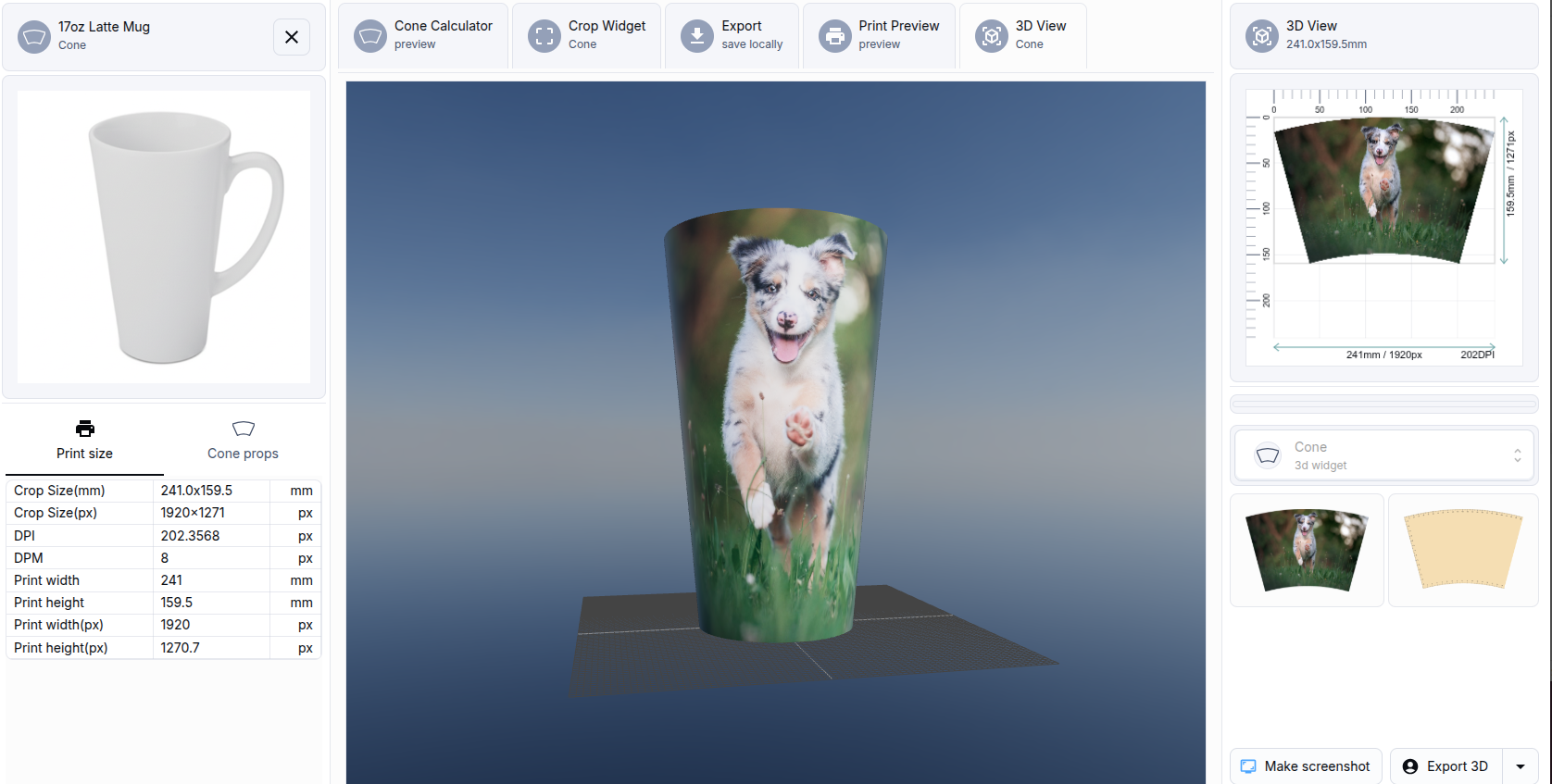
Check out the 3D Preview Widget for more details.
Summary
There are 5 widgets available. Start with the Cone Calculator, then switch to the Crop Widget and Export Widget. Steps 1 and 2 are mandatory.
Export your results using the Export Widget or Print Widget, and preview them with the 3D Preview widget.
| Widget | Purpose |
|---|---|
| Cone Calculator | Input parameters and calculate cone conversion values. |
| Crop Widget | Import an image, crop it, and convert the rectangle to a frustum shape. |
| Export Widget | Export to PNG or SVG, and add offset or margin. |
| Print Widget | Prepare a print-ready page with multiple items for printing or cutting. |
| 3D Preview | Visualize the final print output on a 3D model. |