💾 Export Widget
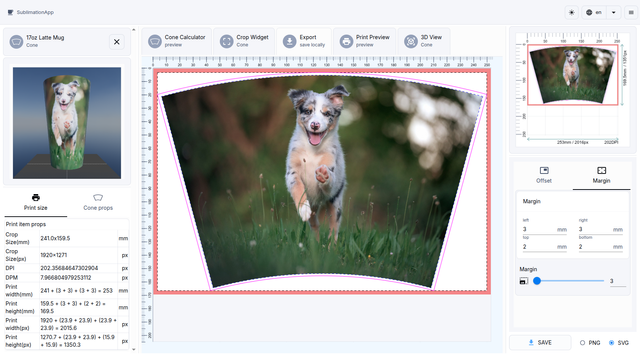
The Export Widget lets you save the final "open" frustum layout (the curved, print-ready image created after the Cone Calculator and Crop Widget steps) directly to your computer.
It is designed specifically for sublimation printing on conical items (mugs, tumblers, etc.). After the image has been transformed into the correct frustum shape, you can add offset (bounding-box padding) and/or margin (bleed) and export in PNG or SVG.
What the Export Widget Does
- Takes the cropped frustum image (indicated by the pink outline in the preview).
- Adds any offset and/or margin you specify.
- Automatically calculates the final export size.
- Saves the file locally in your chosen format.
The resulting file size is always:
Export Width = Object Width + Left Offset/Margin + Right Offset/Margin
Export Height = Object Height + Top Offset/Margin + Bottom Offset/Margin
(The Print size panel on the left shows the live calculation.)
Supported Export Formats
| Format | Use Case | Best For |
|---|---|---|
| PNG | High-resolution raster print file. | Direct sublimation printing. |
| SVG | Scalable vector graphics. | Further editing and scalability. |
Choose your desired format using the radio buttons at the bottom of the widget before clicking SAVE.
Offset and Margin
The widget provides two distinct controls (tabs on the right panel):
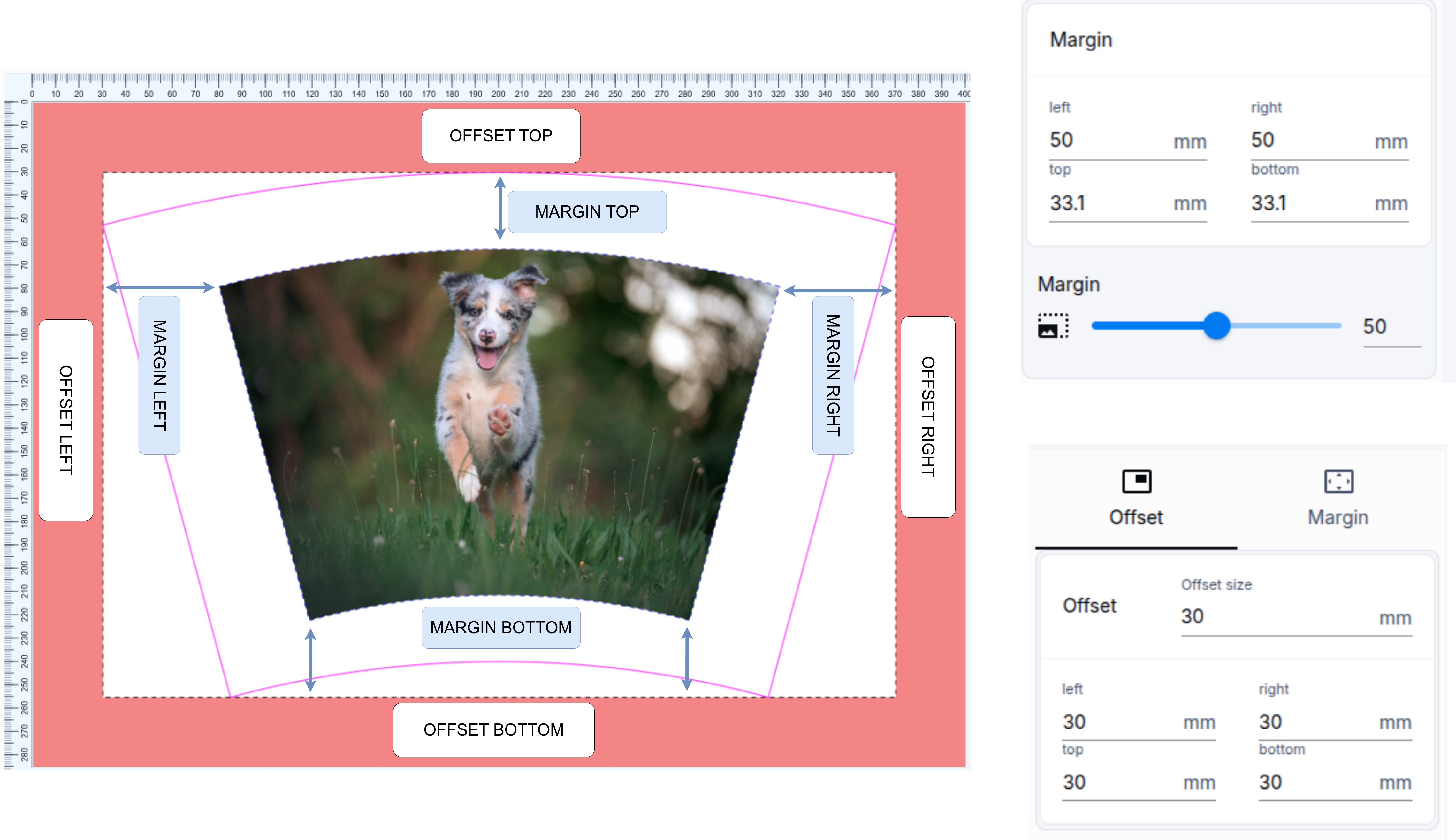
Offset (Outside Padding)
- Adds space around the bounding box of the entire frustum.
- Works like an extra canvas/padding applied separately to each side.
- Has a Rectangle shape.
- Supports per-side values (left, right, top, bottom) or a uniform value.
Margin (Bleed)
- Expands following the exact shape of the frustum (including the curved top and bottom edges).
- Creates a bleed area for printing to account for trimming and wrapping misalignment.
- Uses a uniform value only (per-side values are not supported).
Note that the top and bottom margins are not equal to the left and right pair. When you set a value using the slider, it represents the left or right margin, while the top and bottom are calculated based on the shape's geometry.
You can use both Offset and Margin simultaneously. The final export size includes the sum of both.
SVG Export

You can export the resulting shape, including offset and margin, as an SVG image. All defined lines (offset and margin) are preserved in vector format, making them compatible with cutting devices.

Available Cut Lines
- inner-cut-lines: The exact cut line for the image.
- outer-cut-lines: The cut lines including the bleed margin (the magenta border that "expands" the image).
- offset-inner-cut-lines: A rectangular shape based on the edge points of the
outer-cut-lines(blue color in the mapping screenshot). - offset-outer-cut-lines: The outer rectangle including the offset.
You can cut two rectangular shapes (the offset inner and outer boundaries) and two conical shapes (the exact image and the image with margin values).
- If no
offsetis defined, the offset-outer-cut-lines element will not appear. - If no
marginis defined, the outer-cut-lines element will not appear. - inner-cut-lines will always appear; it represents the exact cut line of the conical object.
- offset-inner-cut-lines will also always appear; it represents the object's exact rectangular cut line.