🖼️ Crop Widget
The Crop Widget is used for importing an image from your local PC and cropping it using the ratio calculated in the Cone Calculator widget.
Your original image is not pre-processed in any way to preserve its quality. However, all uploaded images are converted to PNG format to support transparency. In some cases, this may result in a cropped image with a larger file size than the original picture.
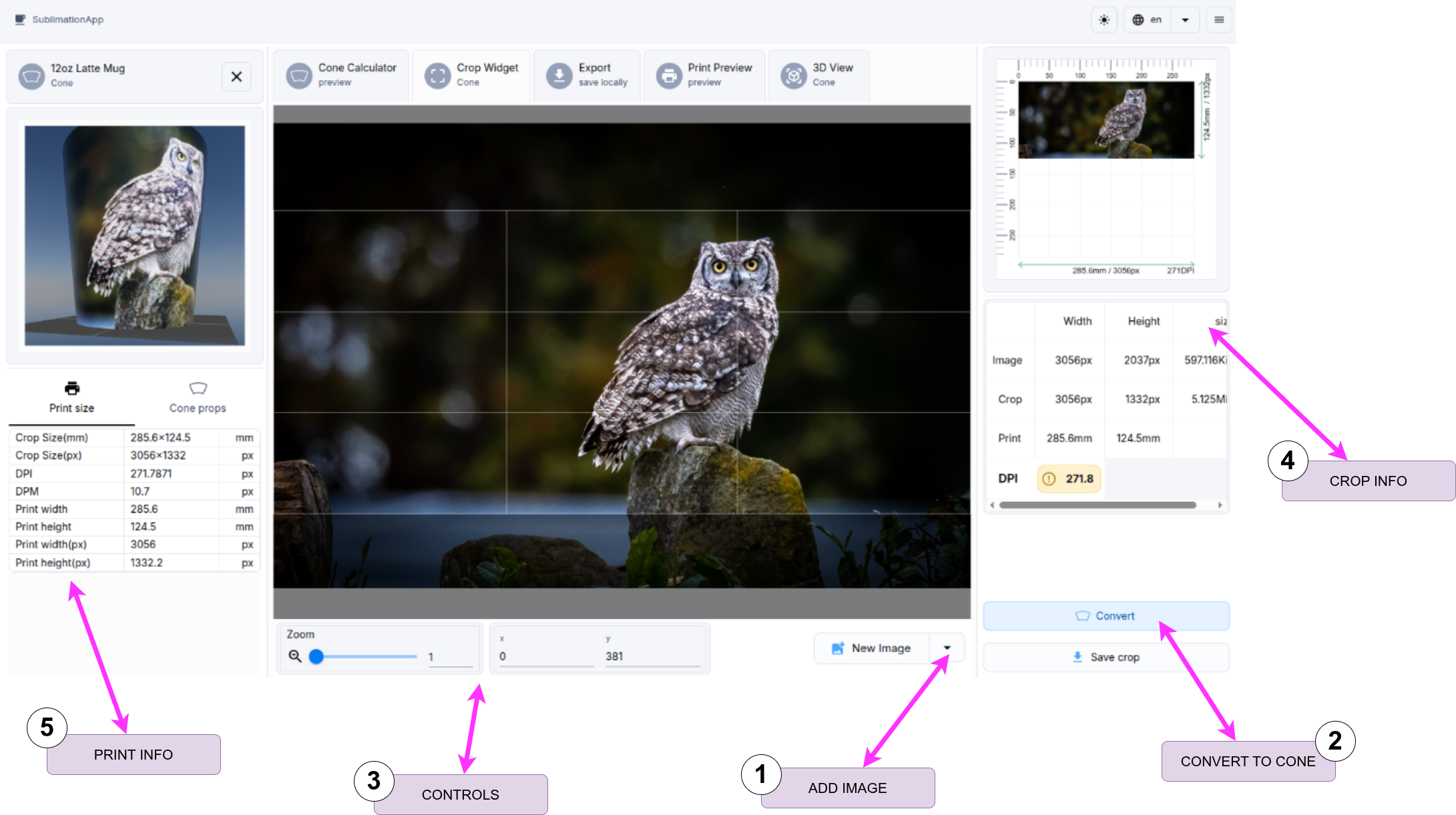
1. Add Image
Import an image from your local PC.
2. Convert to Cone
This is the key operation. It converts the rectangular image into an "open frustum" shape. Use your mouse to drag and zoom the image, then press the Convert button to process the rectangular selection into a conical shape.
3. Image Controls
Use the zoom and X/Y position controls to manually adjust the corresponding parameters.
4. Crop Info Table
| Parameter | Purpose | Units |
|---|---|---|
| Image | Original image dimensions and file size. | pixels |
| Crop | Dimensions and size of the cropped rectangle. | pixels |
| Physical dimensions and size of the cropped area. | inch/mm |
5. Print Sizes
| Parameter | Purpose | Units |
|---|---|---|
| Crop size | Dimensions of the cropped rectangle. | inch/mm |
| Crop size(px) | Dimensions of the cropped rectangle in pixels. | pixels |
| DPI | Dots per inch. | pixels |
| DPM | Dots per millimeter. | pixels |
| Print size | Total print size (including offset/margin defined in the Export Widget). | inch/mm |
| Print size(px) | Total print size (including offset/margin defined in the Export Widget) in pixels. | pixels |